The Qcon Process
Qcon converts between Word documents and package files that can be imported into your Learning Management System (LMS) question library.
Runs entirely in your browser
Qcon processes your file locally in your browser. Your file stays on your computer and is never uploaded to a server.
Conversion Process
The conversion process is a series of steps that Qcon takes to convert your Word document into a package file that can be imported into your LMS.
Step 1: Create a document of questions using Word
QCon formatting examples file: qcon_formatting_examples.docx
- The questions should have numerical numbering
- The first question must be numbered "1." or "1)"
Step 2: Import your file into Qcon
- Drag your file onto the drop area, or click it to choose a file
- Accepted formats: Word (
.docx) and SCORM question library (.zip) - Click the Import File button
Additional Options
Expanding Additional Options before importing lets you:
- Randomize answers (default: off). Shuffles the answers on Multiple Choice and Multi-Select questions. Matching and Ordering questions are always shuffled. See randomizing answers
- Answer Enumeration (default: Letters (a,b,c)). Changes how answers are labeled (like a,b,c or i,ii,iii) on Multiple Choice, True/False, and Multi-Select questions.
- Custom Image Folder (default:
assessment-assets/{quiz title}/). Images are placed in this folder in the course's Manage Files area. See media & links
Step 3: Preview and edit your questions
- Qcon displays a preview of your questions
- Click a question to edit it, or use Edit all to edit the whole library
- Click View Summary to see question counts and any issues found
- If you need to make larger changes, edit your Word file and import it again
Track Changes and comments
If your Word file contains unresolved Track Changes or comments, a warning lists each change and comment. The original text is imported: reviewer insertions are dropped and deletions are kept. Review the questions carefully.
Step 4: Export your questions
- Click Export SCORM zip to download the package for your LMS (see below for upload instructions)
- Or click Export Word (.docx) to save an editable Word copy of your question library
Note
If the imported file had tracked changes or comments, Qcon confirms before exporting to Word since they are not carried over to the exported file.
Uploading the course package ZIP file to Learning Hub
Uploading the ZIP file to Learning Hub
After downloading the ZIP file, you can upload it into your course in Learning Hub.
- Navigate to your course offering in Learning Hub
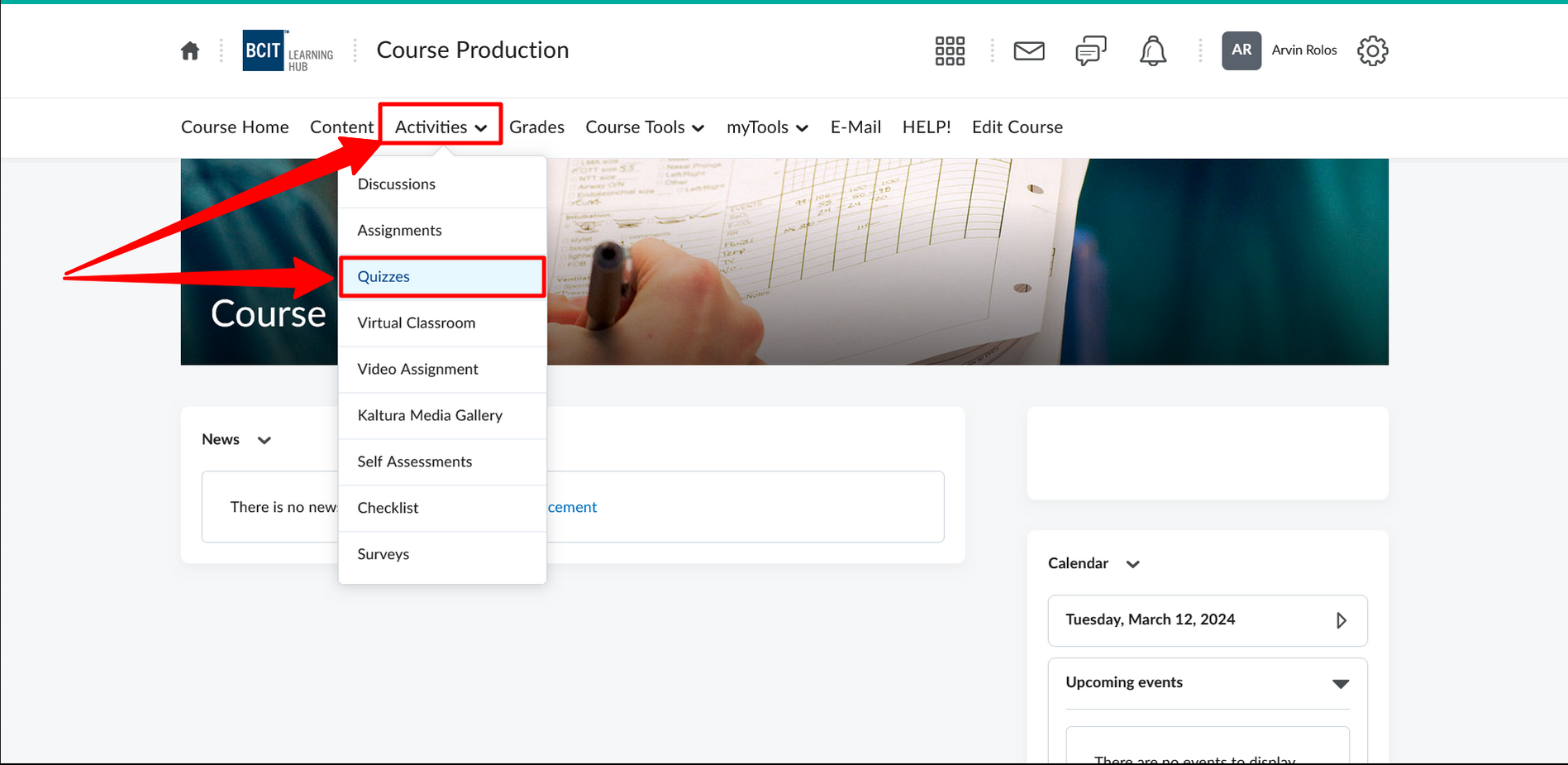
- Navigate to the Quizzes
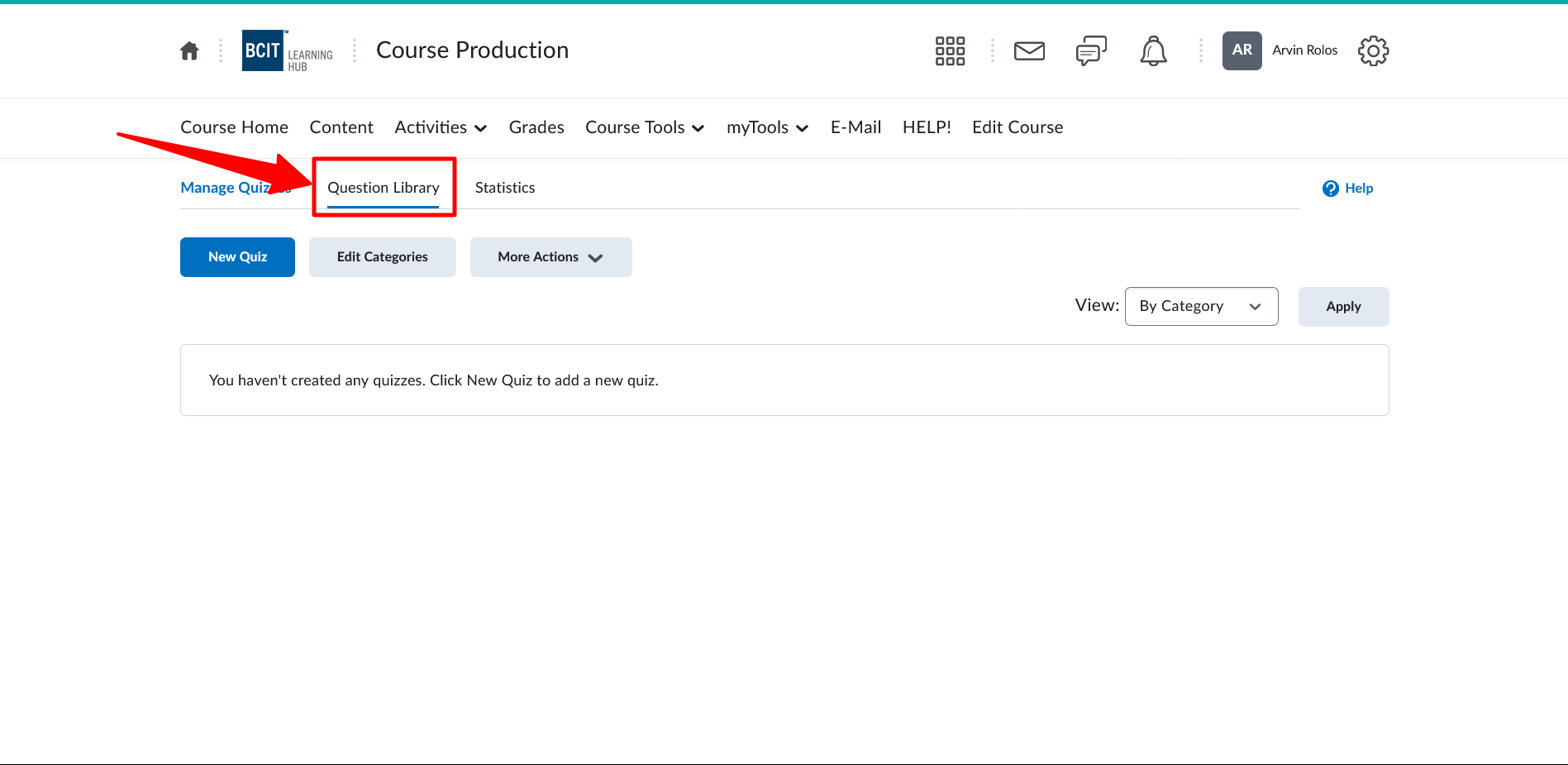
- Click into the Question Library
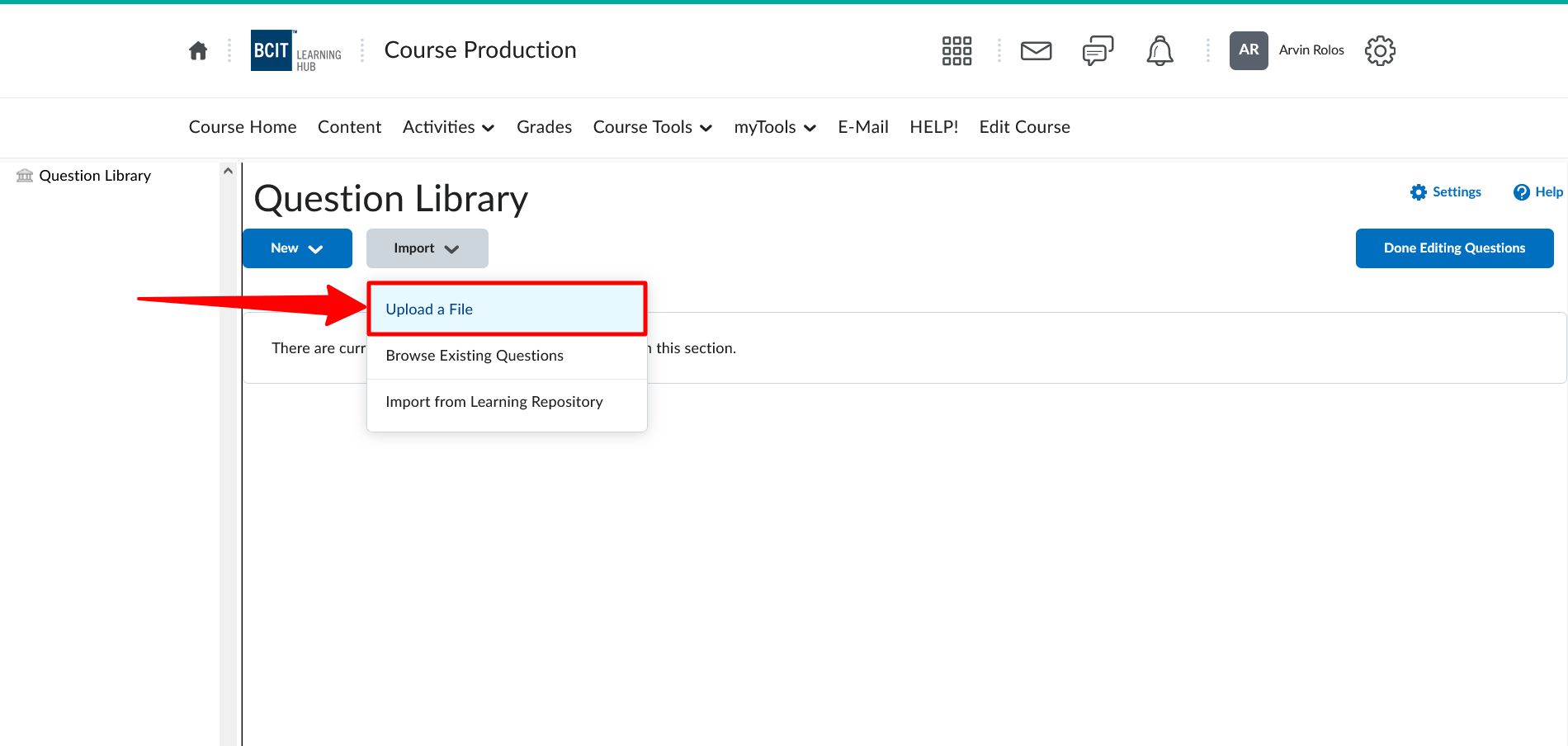
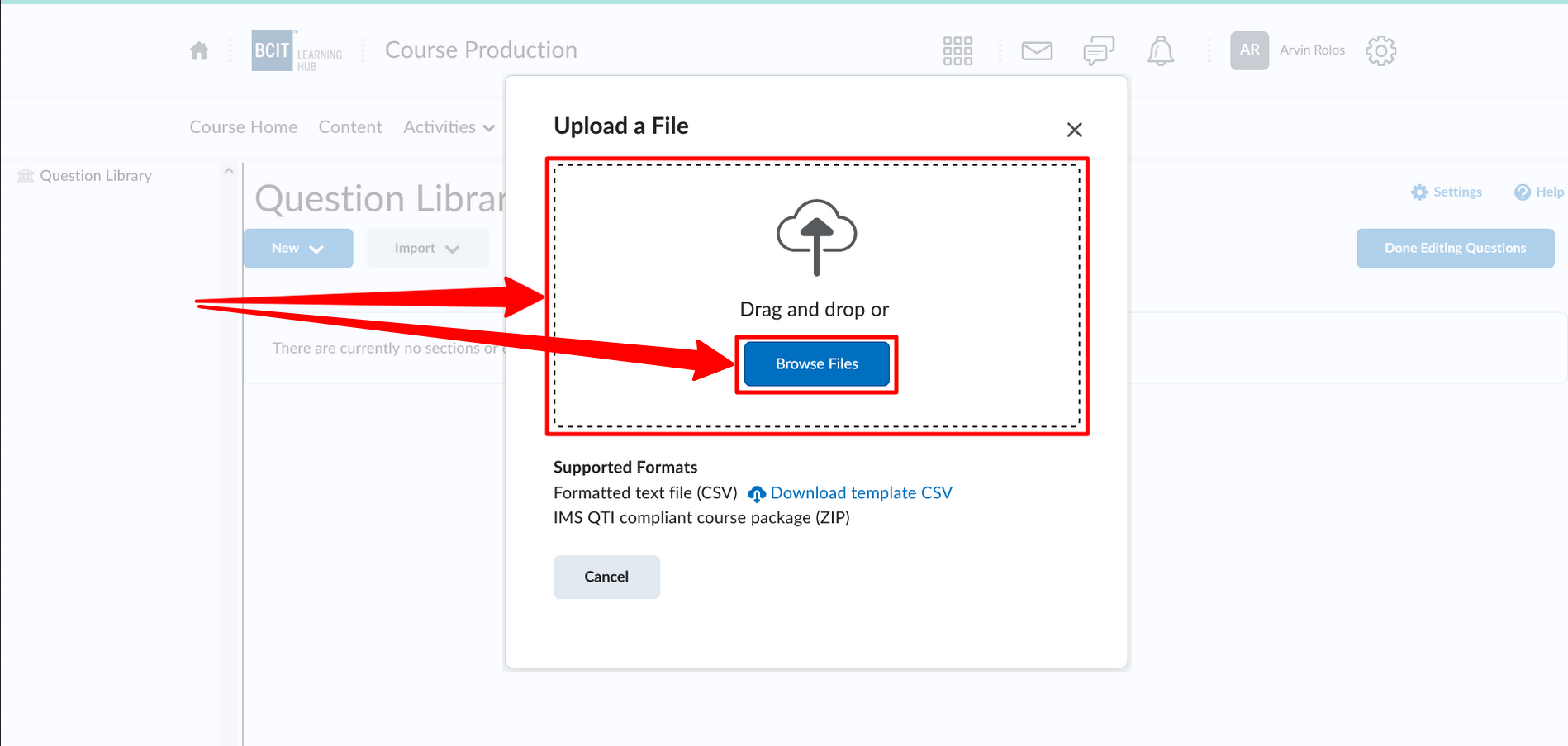
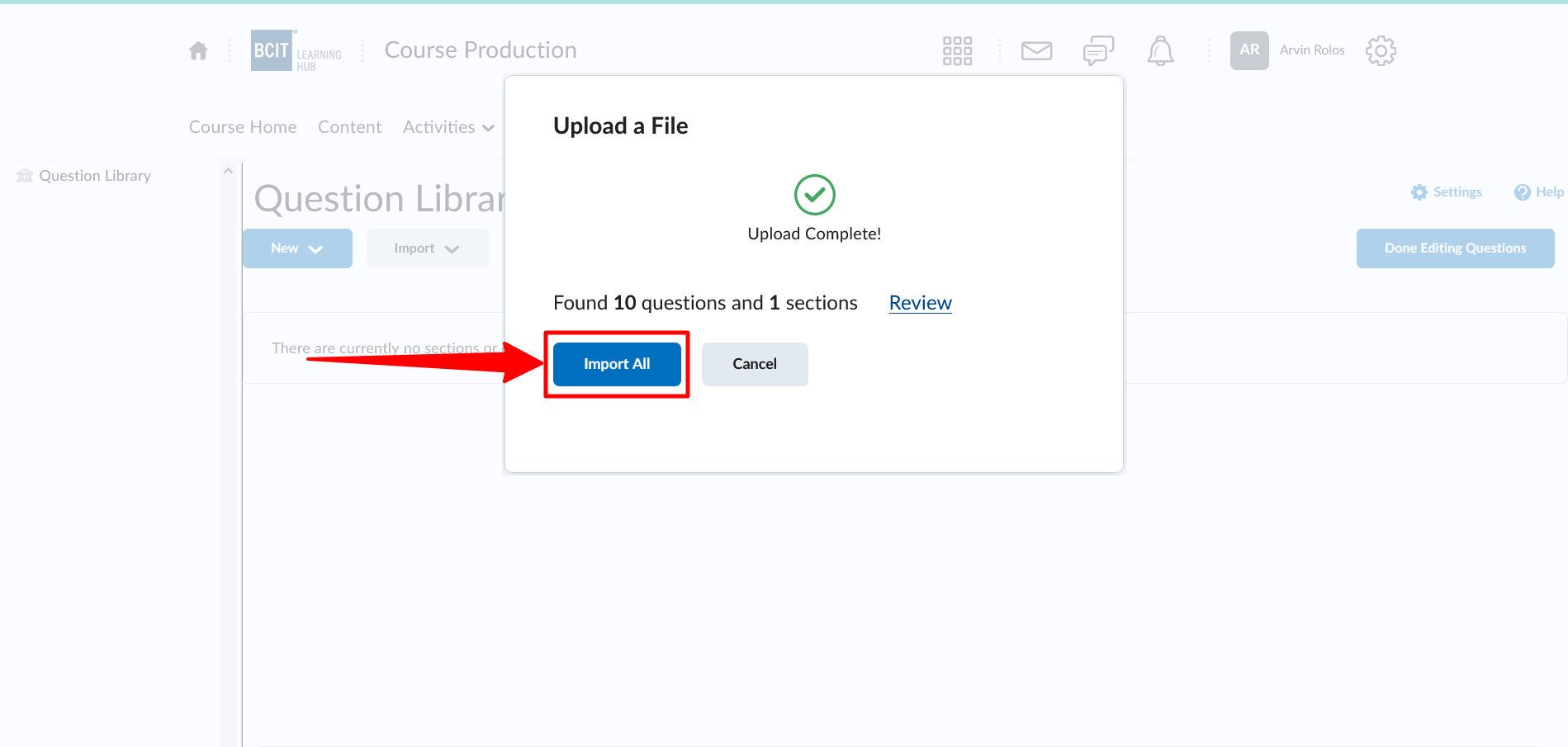
- Click the Import button and the Upload a File link; follow the instructions to upload your ZIP file
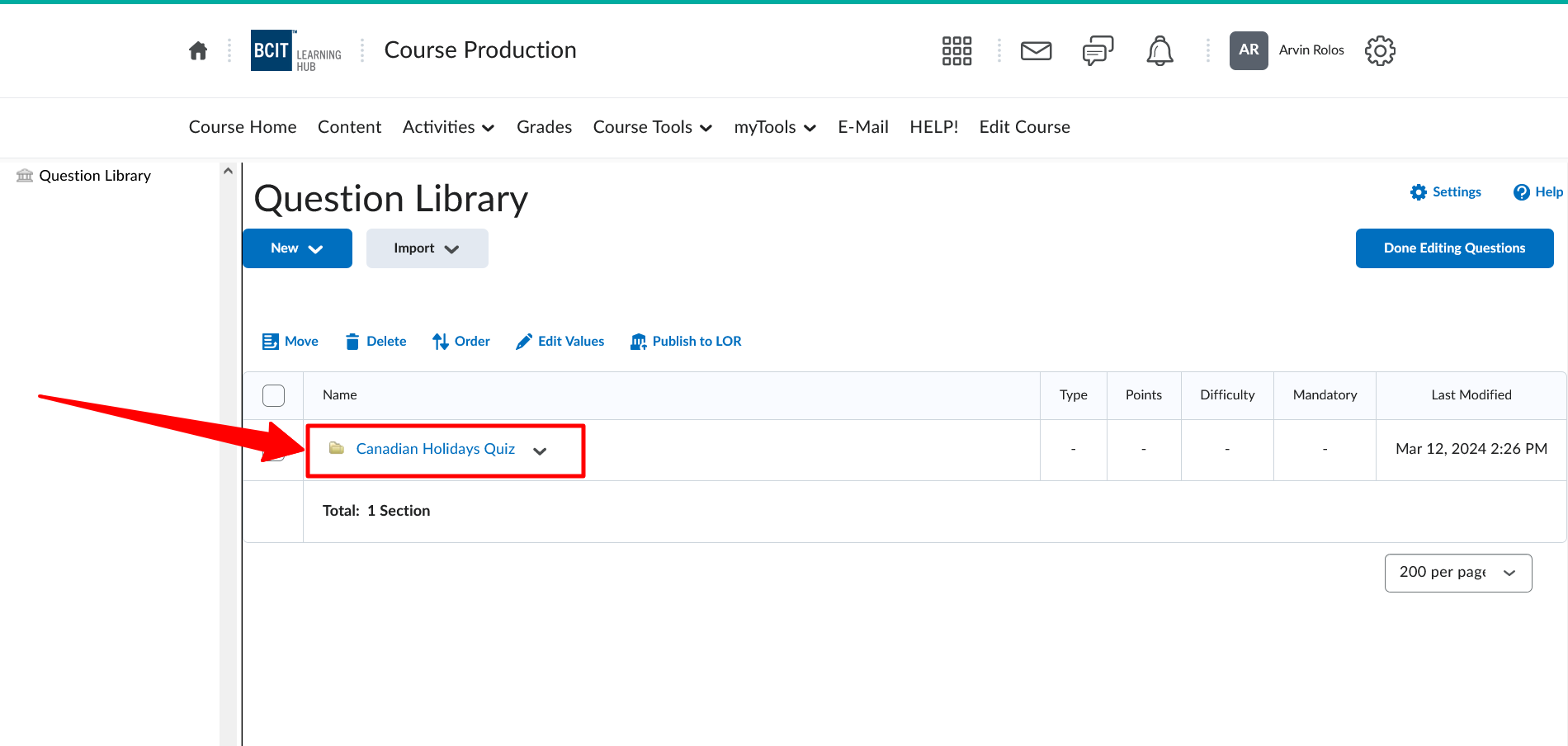
- Verify that your questions were imported successfully into a Section with the same name as your file
Failed to upload ZIP file to Learning Hub
If you encounter any errors during the uploading process, please contact us at courseproduction@bcit.ca for assistance. 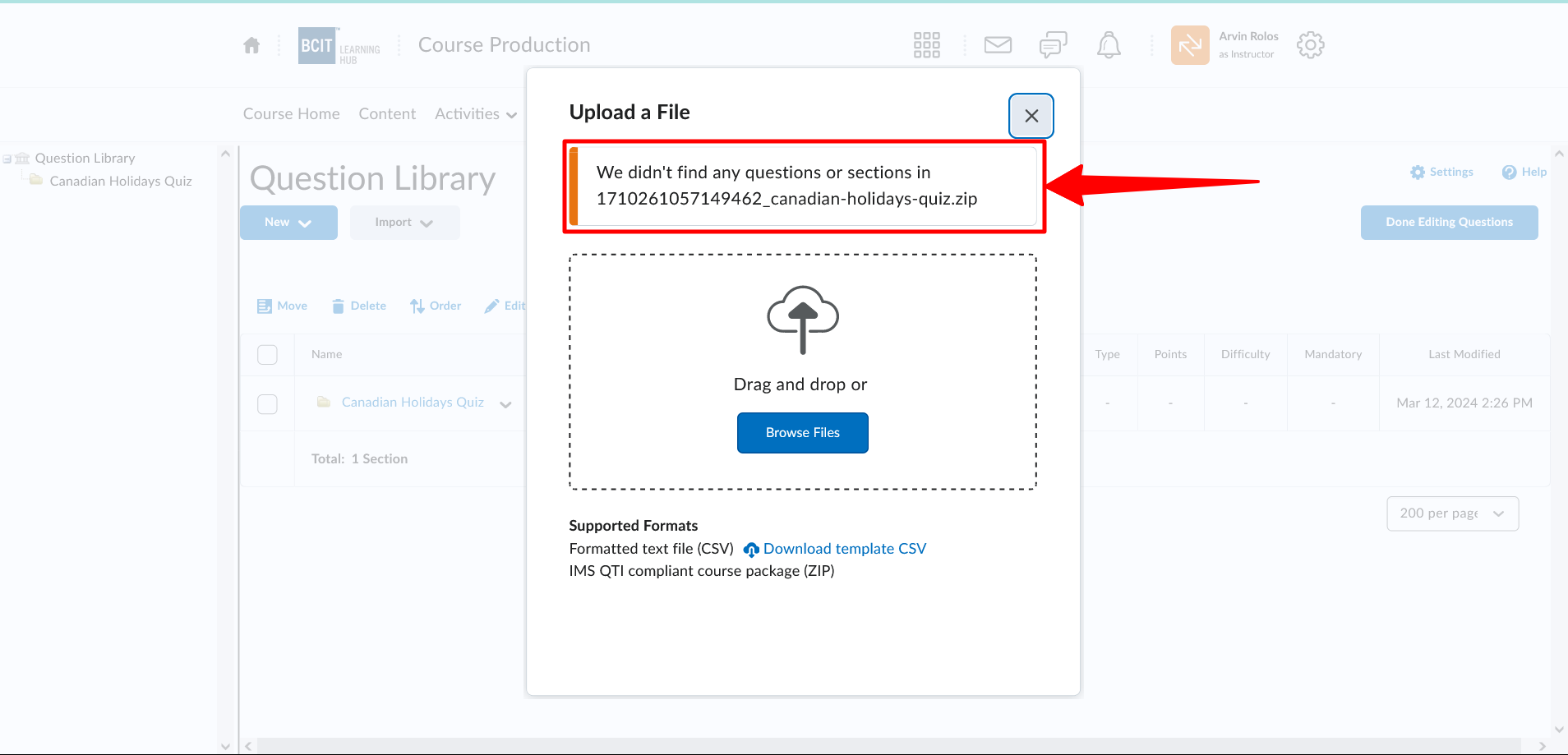
Creating Quiz in Learning Hub
Creating quiz in Learning Hub
Please check the ETS Tech Help guides below:
- Quizzes – Overview
- Quizzes – Video tutorials for Instructors – Quiz tool
- Quizzes – Create a Question Pool (Random Section) in a Quiz
You can browse https://www.techhelpbcit.ca/category/instructor-resources/quiz-instructor/ for more information about quizzes in Learning Hub.
Errors during the process
There are three main categories of errors that can occur during conversion
- Word document errors
- Question formatting errors (example)
- System errors.
The first pass over the document is to check for Word document errors. If any are found, the import will stop and you will be notified of the errors. You will need to correct the errors in your file and import it again.
If no Word document errors are found, the import continues to the question formatting check. Question formatting errors do not stop the import; they are shown in the preview and the View Summary panel so you can review them.
Word document errors
Word document errors are related to the word document. These errors can include:
- Incorrect file format
- Missing content
- Incorrect question numbering (only numerical numbering supported)
If any Word document errors are found, the import will stop and you will be notified of the errors. You will need to correct the errors in your file and import it again.
An important requirement to note is that the first question must be numbered "1." or "1)" . Otherwise Qcon will not be able to find content.
Question formatting errors
Question formatting errors are relating to the content of the questions in your Word document. These errors can include:
- Missing question text
- Missing answer choices
- Missing correct answer
If any question formatting errors are found, they will be displayed in the preview of your questions and in the View Summary panel. You can fix them directly in the editor, or correct your Word file and import it again. Check the question type pages in this guide for more information about a specific error.