Media & Links
Images
Wrap text for images
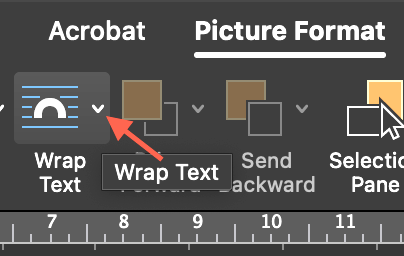
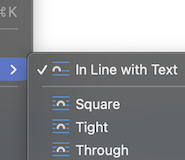
Images can be added to question text, answer text, or feedback.
Note
Images should have the Wrap text format option set to In Line with Text.
To position an image correctly:
- Select the image
- Choose Picture Format at the top of the ribbon
- Choose Wrap Text
- Choose In Line with Text
If your image changes location after completing the steps above, reposition the image by dragging it to where you want it.
Where images are stored
In the exported SCORM package, images are placed in an assessment-assets/{quiz title}/ folder in the course's Manage Files area by default. To use a different folder name, expand Additional Options on the import page and check Custom Image Folder.
Existing folders are overwritten
If the destination folder already exists in the course's Manage Files area, imported images replace existing files with the same name. Use a unique quiz title or a custom folder name if you import several packages that share images or filenames.
If you use the editing tools in Word to crop or resize an image, you have to compress the image or it will show the uncropped or resized version of the image. Do the following to compress the image:
- Select/click the image on the Word document
- Once you're in the Picture Format tab, click on the Compress Pictures button
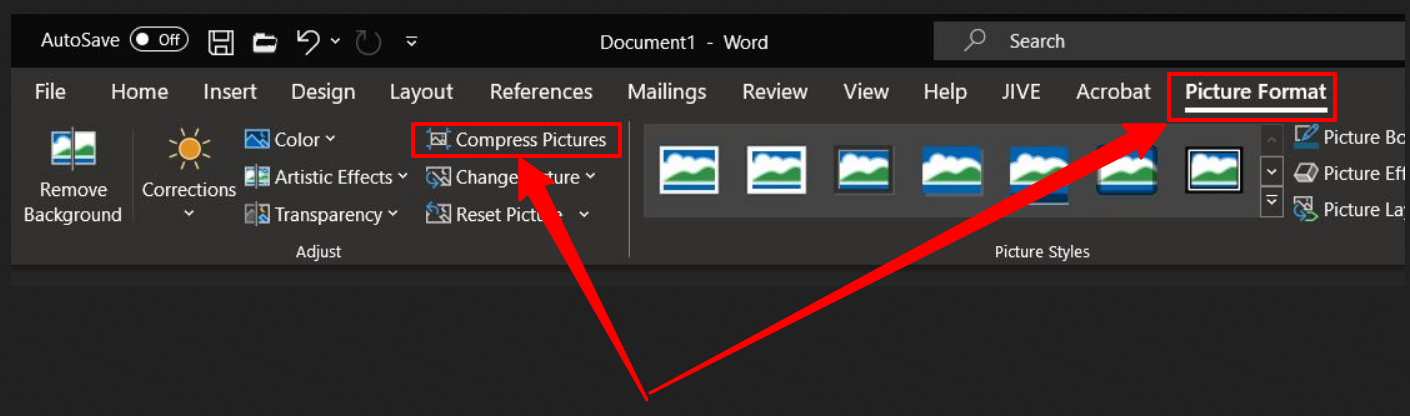
- In the Compress Pictures dialog box, select the Apply only to this picture, Delete cropped areas of pictures, and use default resolution options
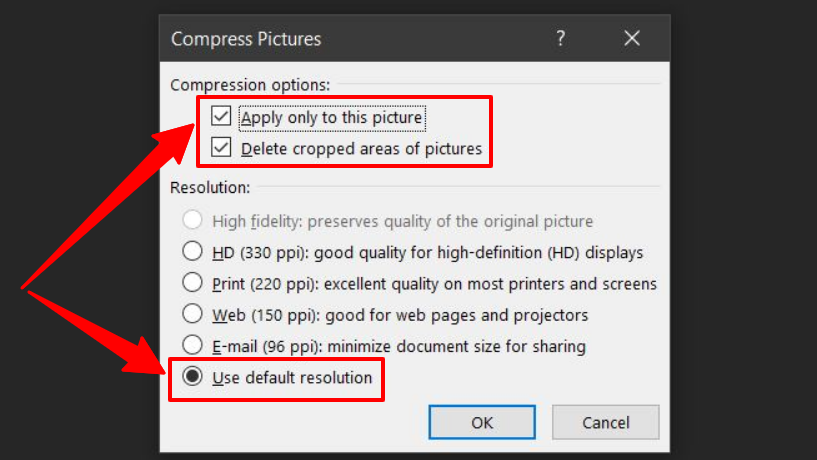
- Click OK
Videos
Currently, QCon doesn't accept embedded videos. Please either add a link to a video or add embedded videos after the questions have been imported into your LMS.
Web Links
QCon automatically converts Word hyperlinks into web links.